Logs
All the applications' logs are being aggregated in the AWS CloudWatch Logs service. There are several ways to view them. Here you can find a few, most useful ways to view your logs. Don't forget to check AWS CloudWatch Logs Insights!
AWS CLI
You can tail your logs with AWS CLI v2 e.g.:
aws logs tail /ecs/staging/devopsbox-io/example-backend-app --follow
The log group name has the following format: /ecs/ENVIRONMENT_NAME/APPLICATION_NAME
e.g. /ecs/staging/devopsbox-io/example-backend-app
Please refer to the AWS documentation for all the available options: https://awscli.amazonaws.com/v2/documentation/api/latest/reference/logs/tail.html
ECS console
You can view your logs directly in the AWS ECS console. To do this you first have to find your application's ECS service:
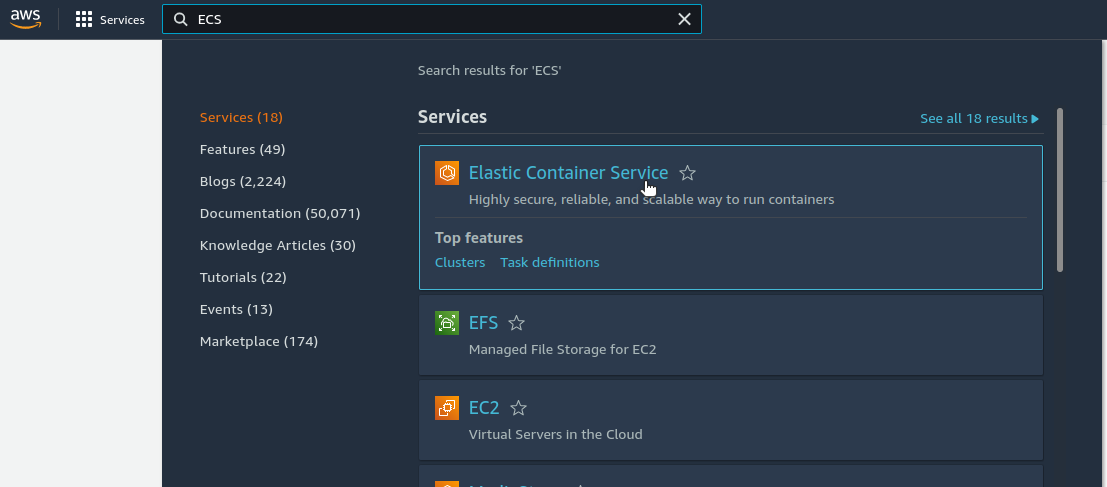
- Find and select the ECS console:
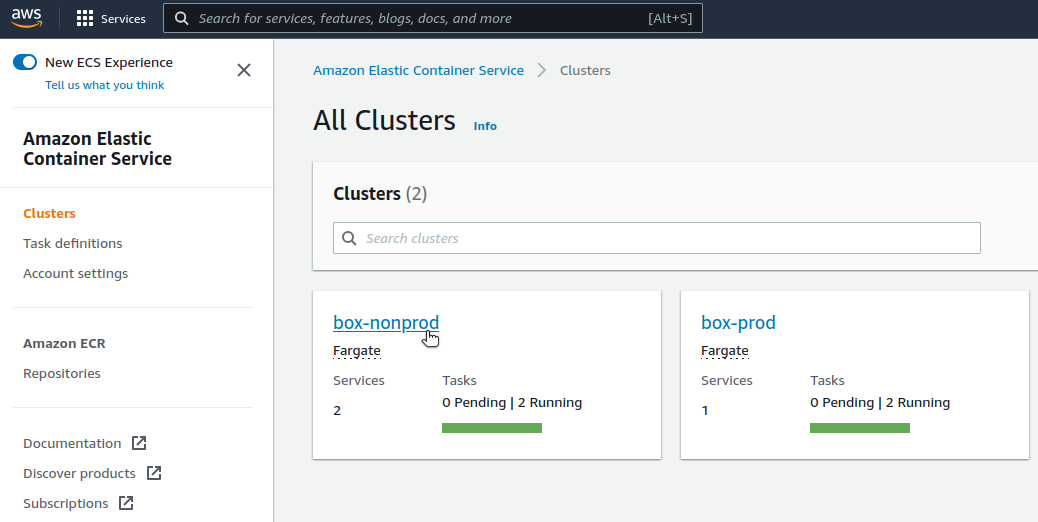
- Select an appropriate ECS cluster:
- Find and select your ECS service. The name starts with your application's name (
e.g.
devopsbox-io-example-backend-app) and environment name (e.g.staging), all the.and/characters are replaced with-:

Service
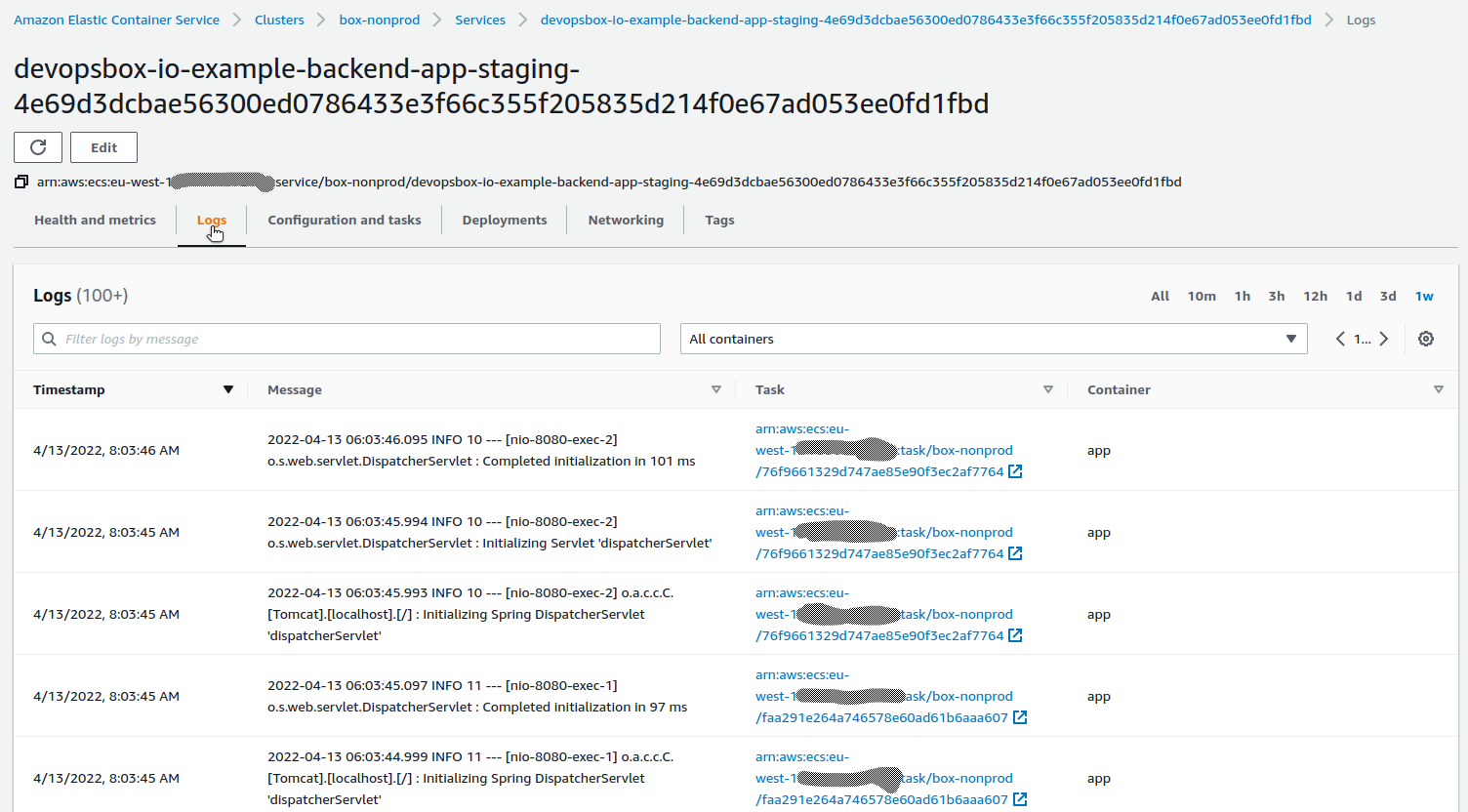
You can view logs directly on the ECS service page. On this view you can view logs of all application's containers,
filter a single container or even filter the log messages. You just have to select the "Logs" tab:
Task
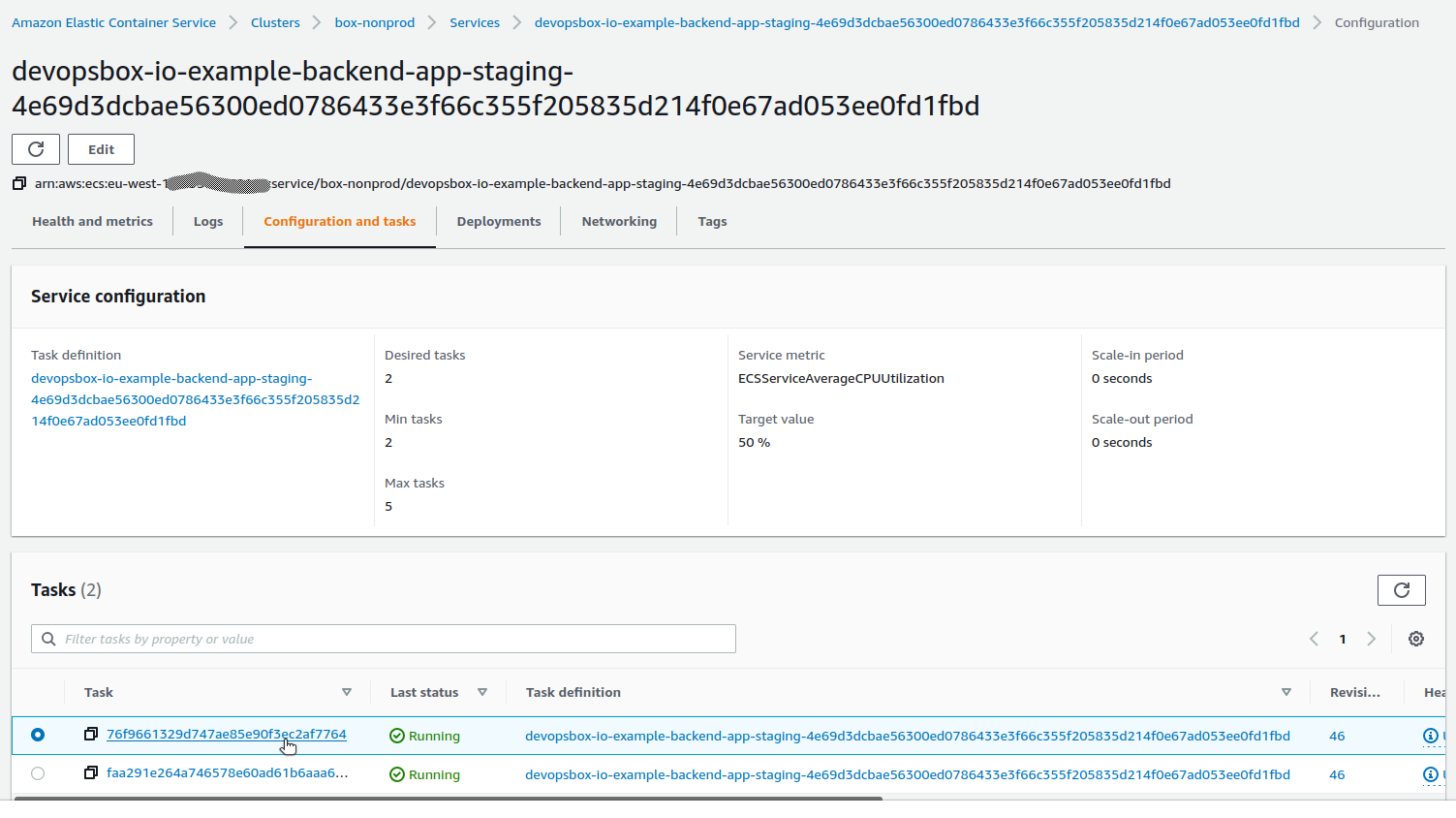
If you want to view logs of a single task, you have to:
- Go to the "Configuration and tasks" tab and select a task:
- Select the "Logs" tab:
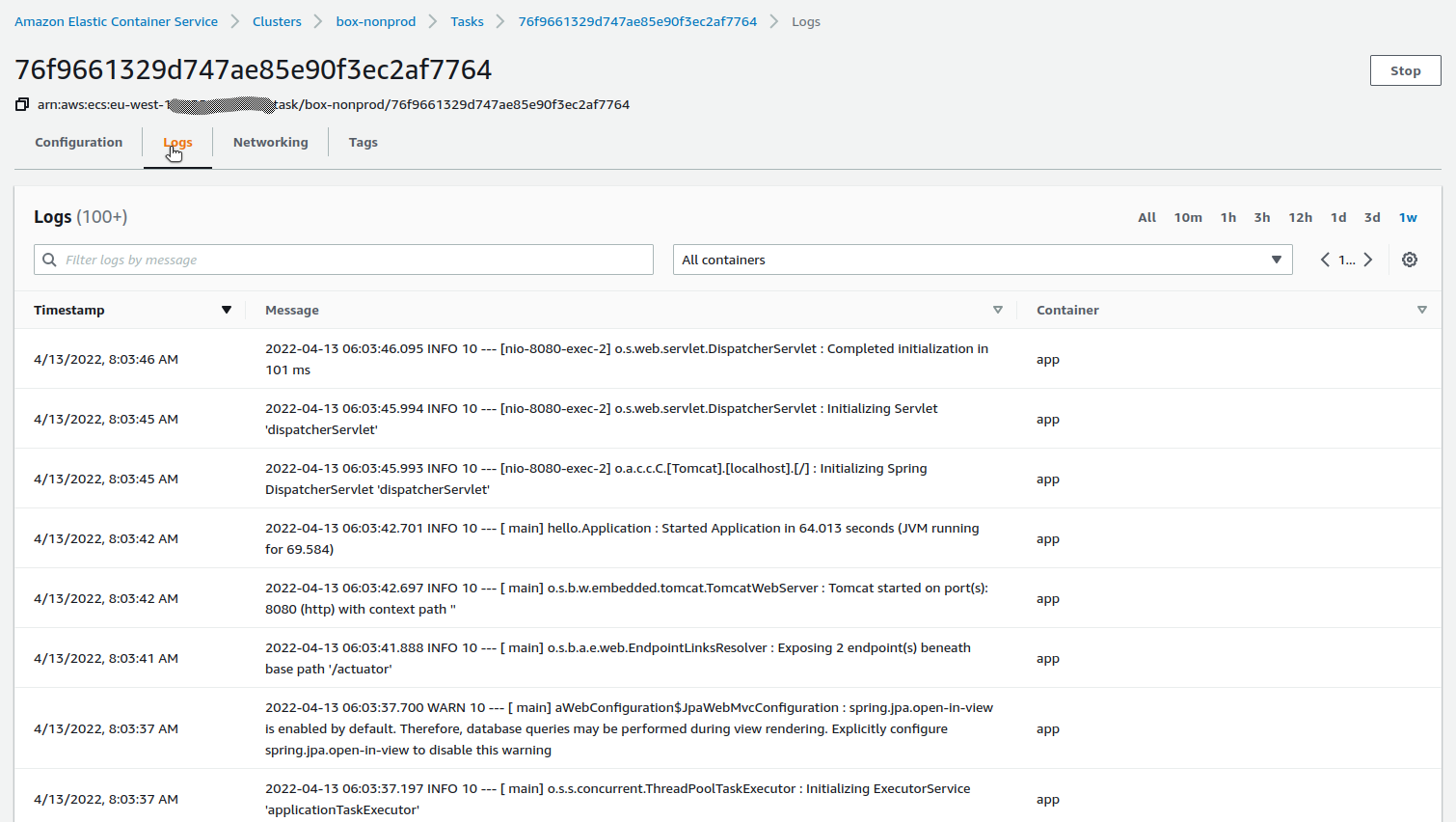
- You can filter the log messages on this view.
CloudWatch
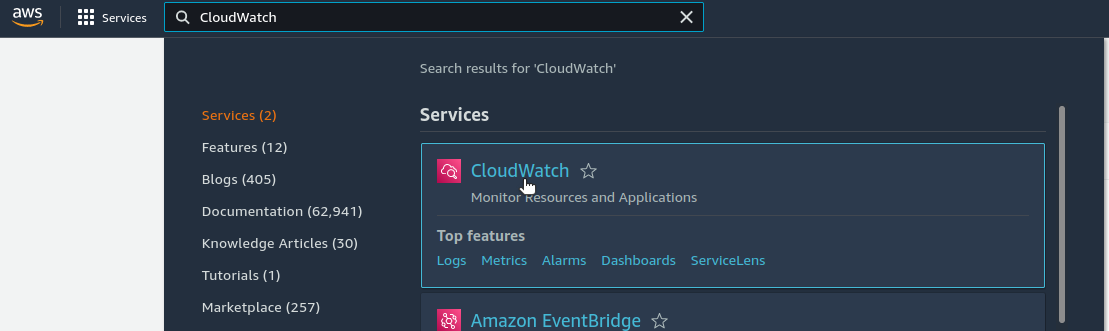
There are two ways to view logs in the AWS CloudWatch console: "traditional" log groups view and CloudWatch Logs
Insights. To use any of them first you have to find the CloudWatch service in your AWS console:
Log groups view
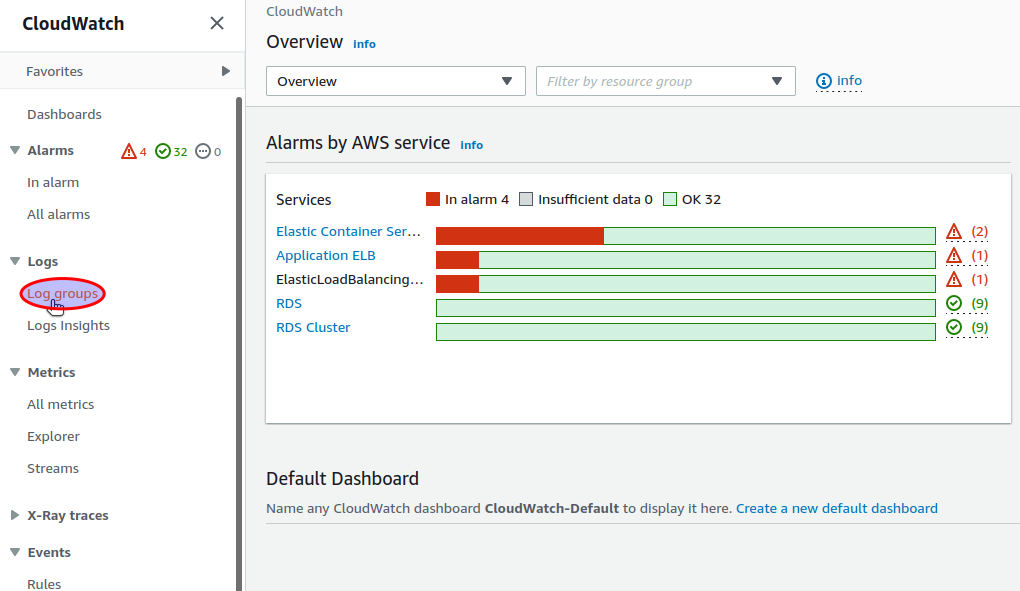
You can use the "Log groups" page to view your logs:
- Select the "Log groups" menu item:
- Find and select your log group. The name has the following format:
/ecs/ENVIRONMENT_NAME/APPLICATION_NAMEe.g./ecs/staging/devopsbox-io/example-backend-app:

All tasks
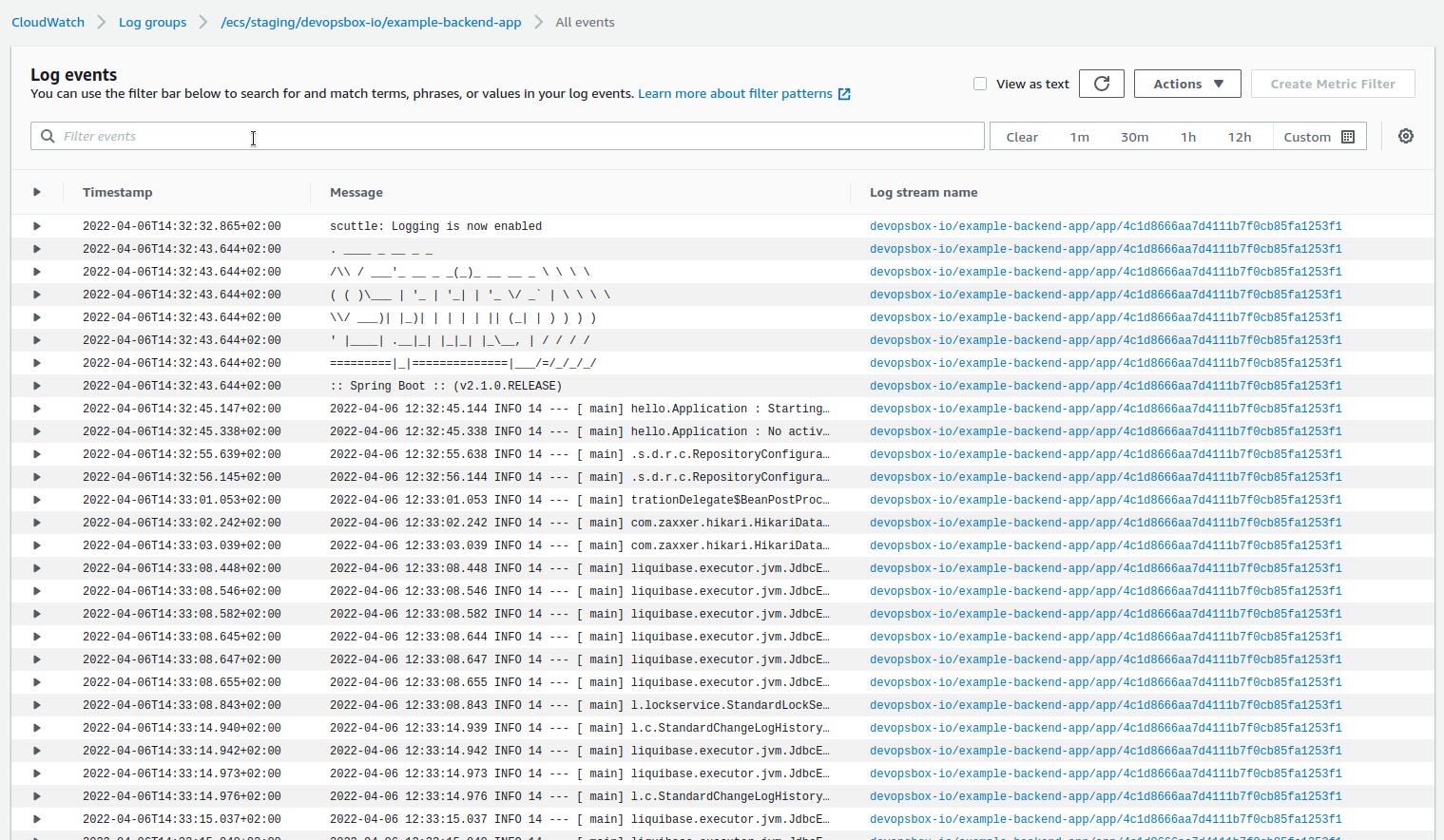
You can view logs of all the tasks run by your application's ECS service.
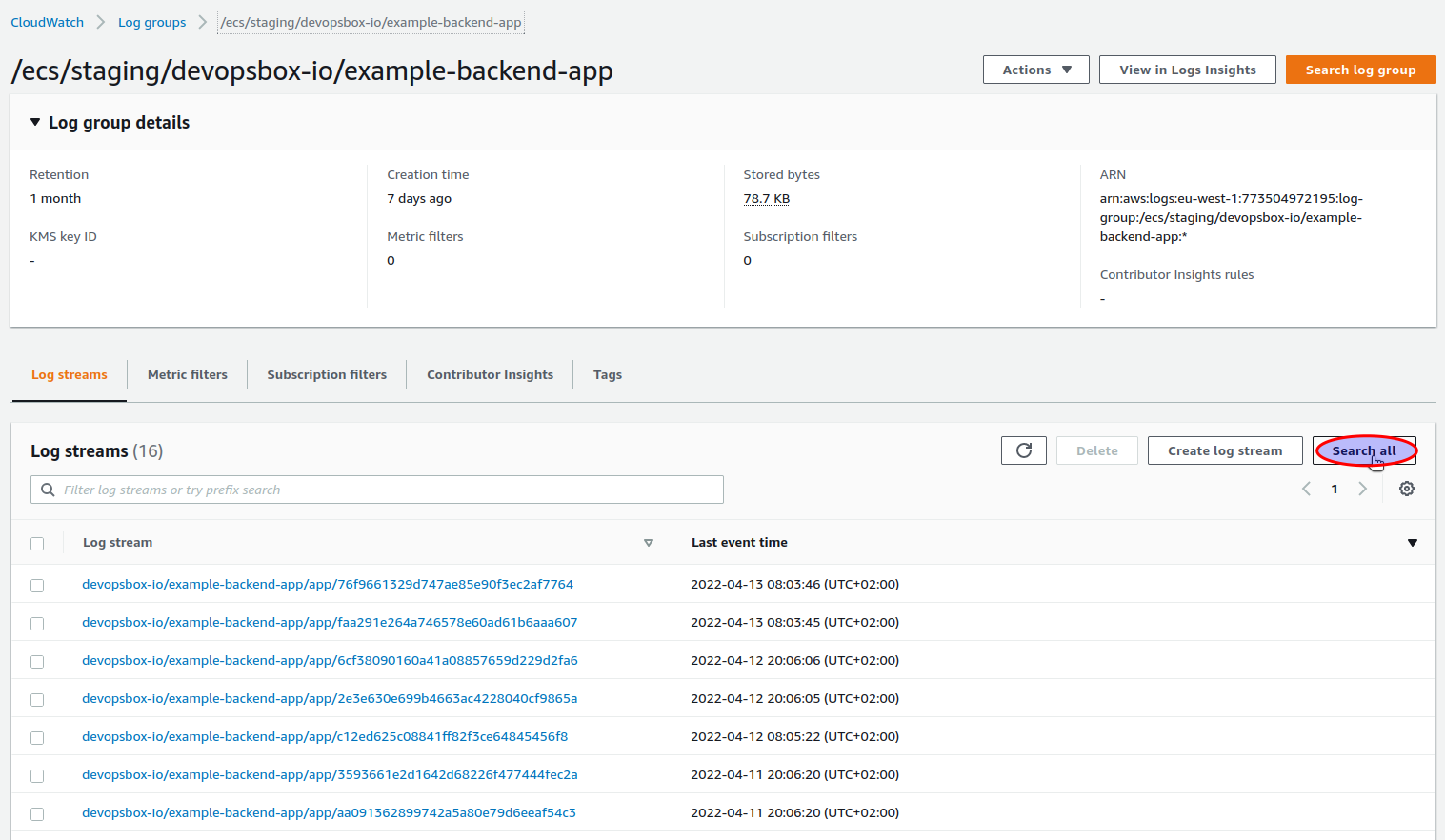
- You have to select the "Search all" option:
- Here you can view the logs of all application's containers, select a single ECS task or even filter the log messages:
Single task
You can view the logs of a single task.
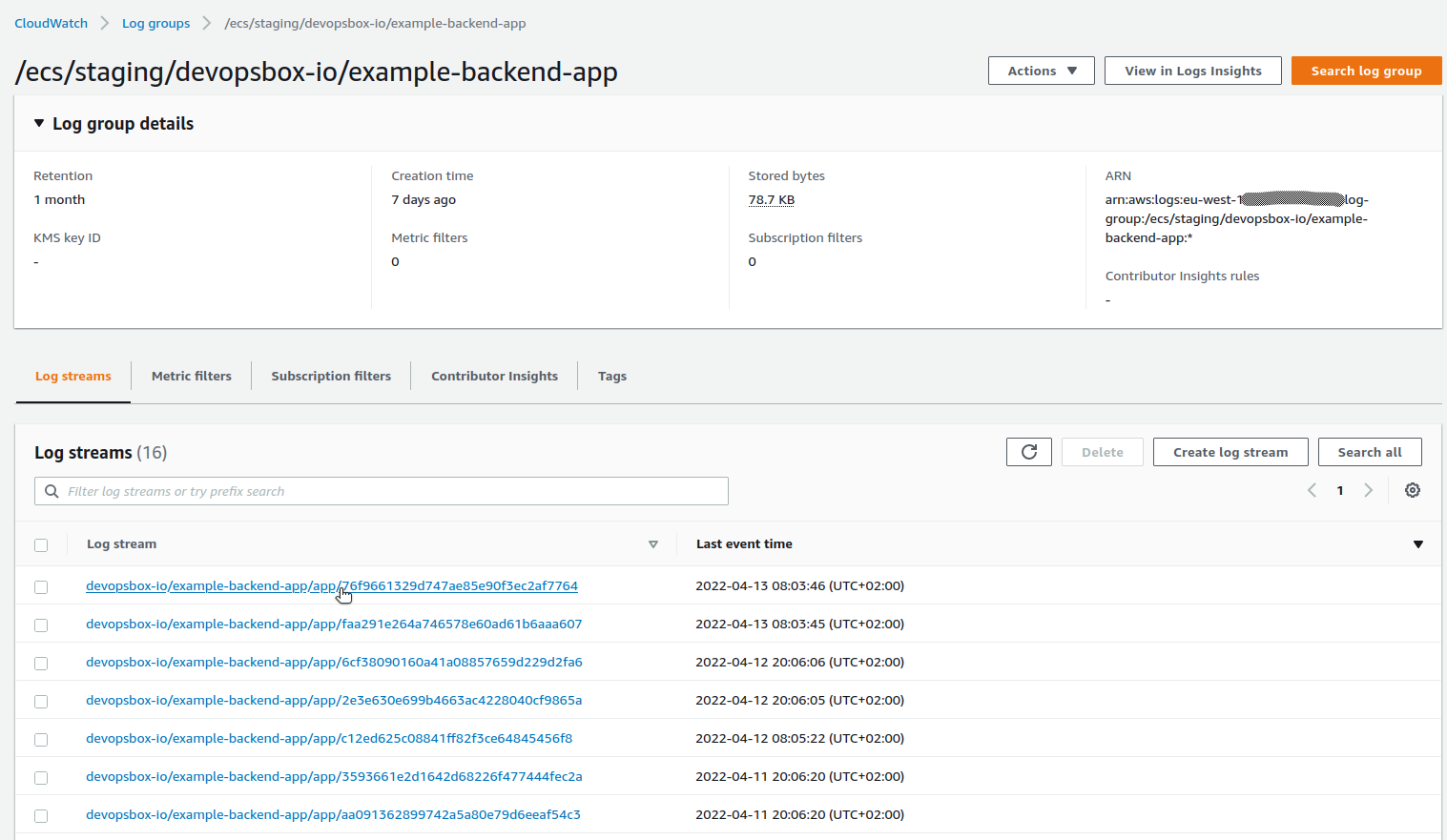
- First you have to select an appropriate log stream. The name format is
APPLICATION_NAME/CONTAINER_NAME/TASK_IDe.g.devopsbox-io/example-backend-app/app/76f9661329d747ae85e90f3ec2af7764:
- The logs view will be opened:
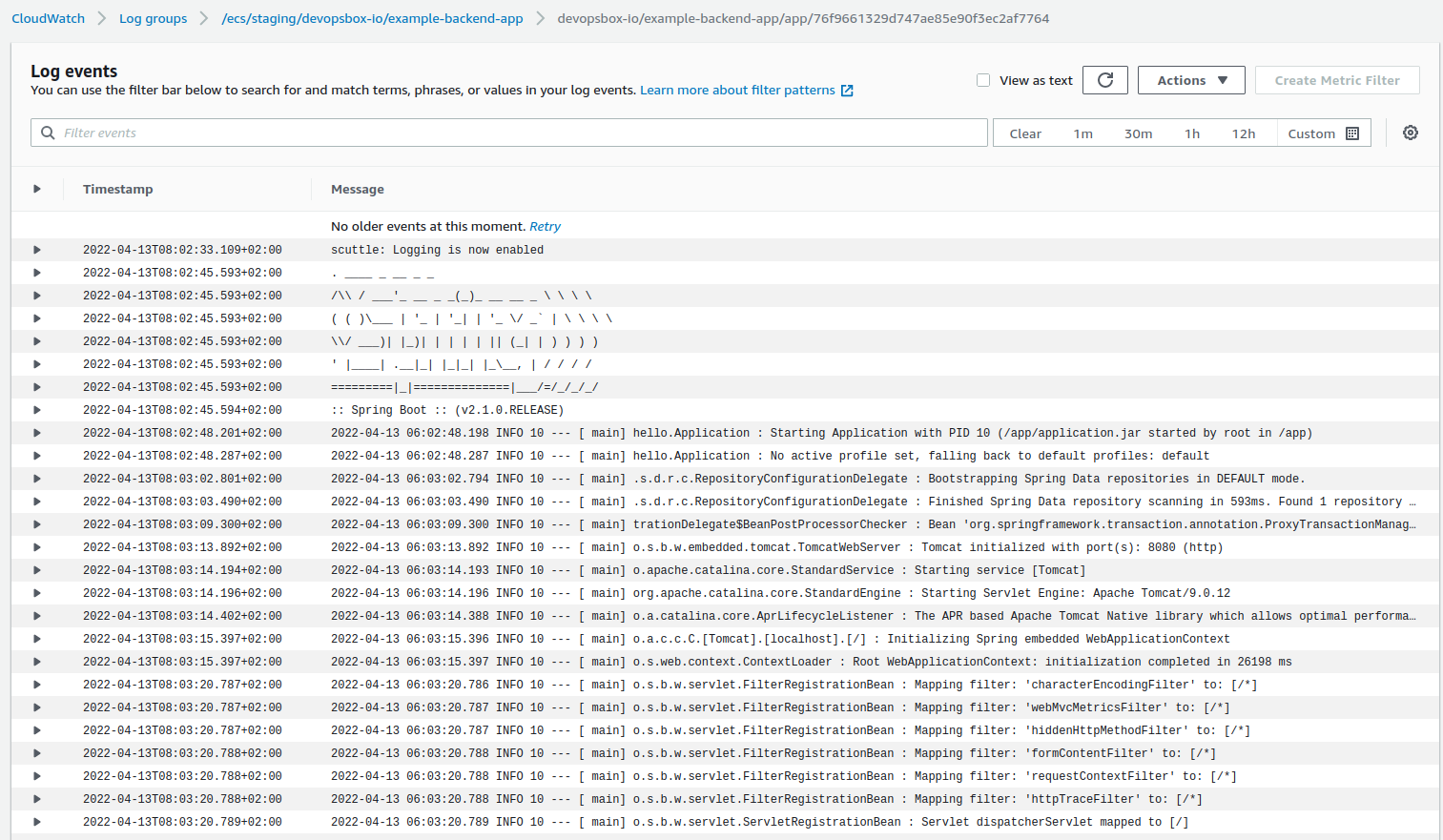
- You can filter the log messages on this view.
Logs Insights
AWS CloudWatch Logs Insights is the most powerful way to view your logs in CloudWatch. It has its own query language: https://docs.aws.amazon.com/AmazonCloudWatch/latest/logs/CWL_QuerySyntax.html. To query you logs using Logs Insights you have to:
- Select the "Logs Insights" menu item:
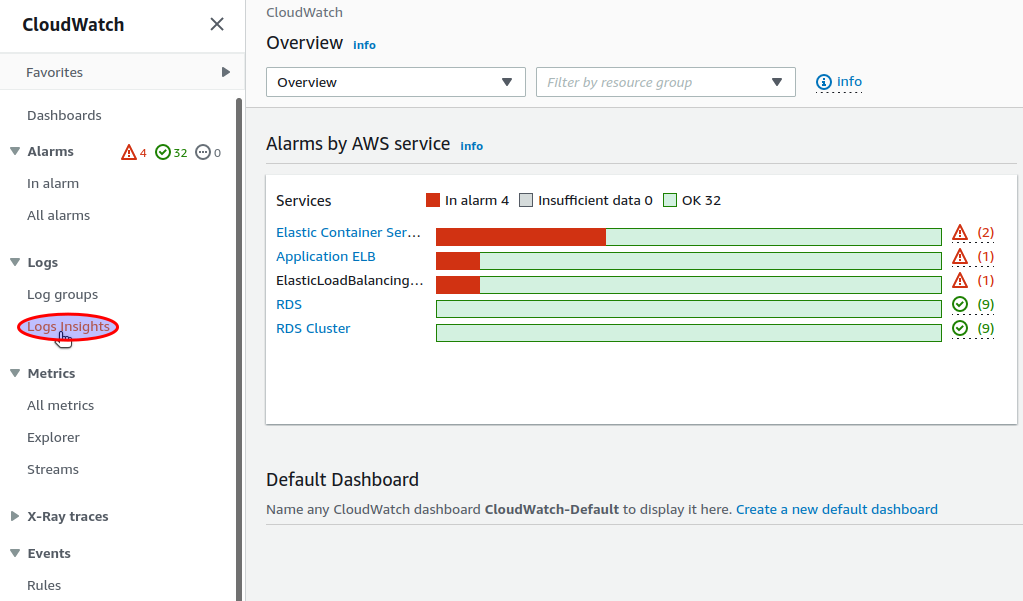
- Find and select your log group. The name has the following format:
/ecs/ENVIRONMENT_NAME/APPLICATION_NAMEe.g./ecs/staging/devopsbox-io/example-backend-app:
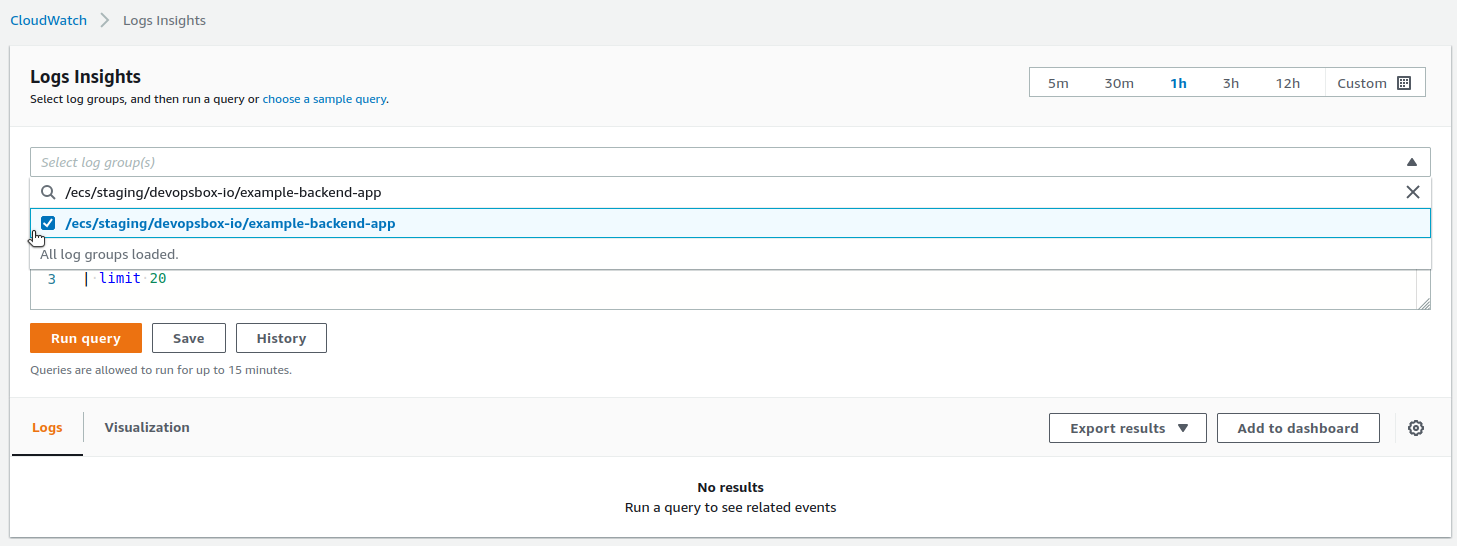
- You can now write and run your queries.
Logs Insights query examples
- Filter out health check access logs:
fields @timestamp, @message
| filter @message not like "GET /actuator/health HTTP/1.1"
| sort @timestamp desc
| limit 20
- Link to the CloudWatch logs to view surrounding logs:
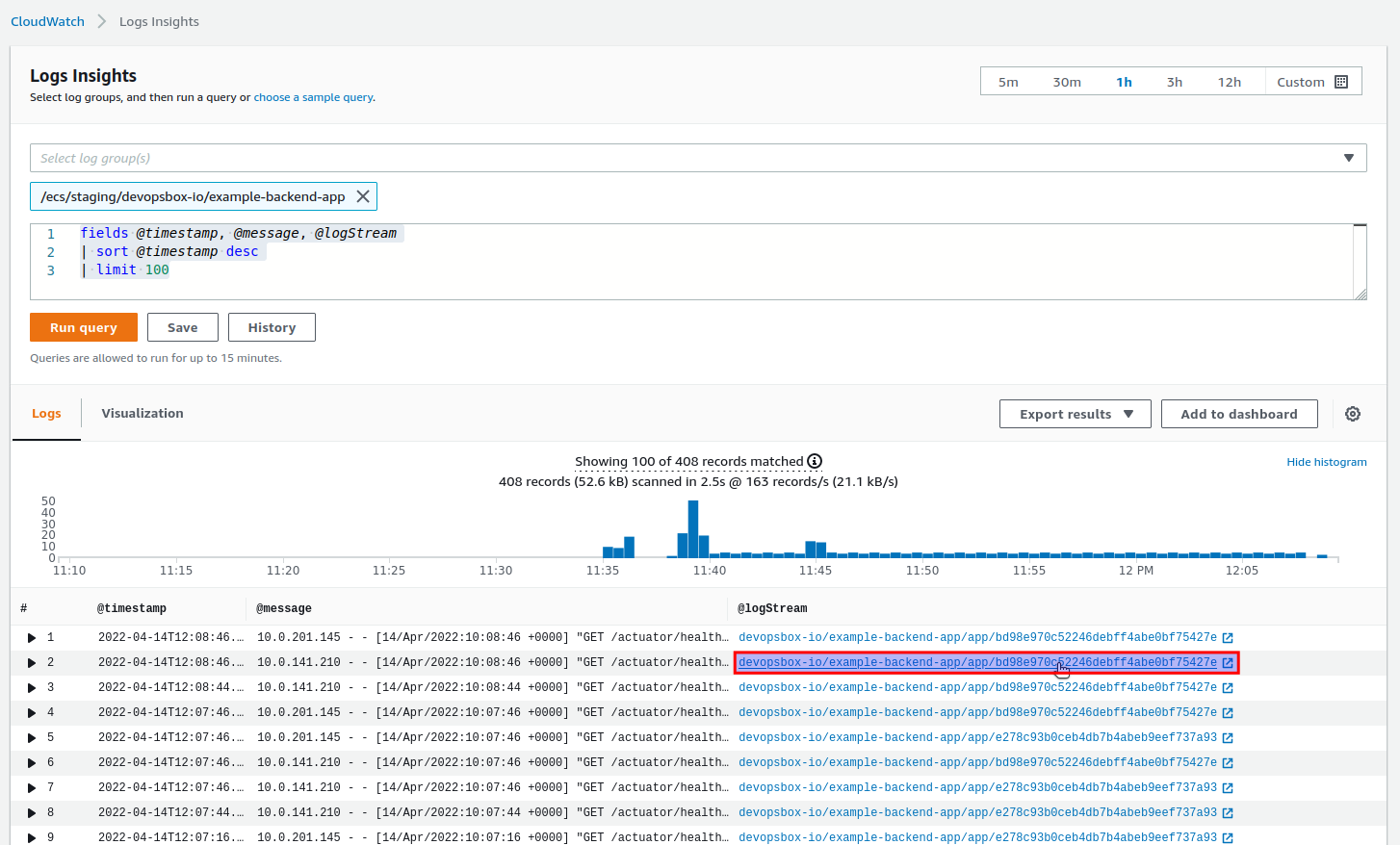
fields @timestamp, @message, @logStream
| sort @timestamp desc
| limit 100
After running the above query, you can click the @logStream and you will be redirected to the CloudWatch Log groups view
with the right date filter: