DynamoDB
One of the supported backing services are DynamoDB tables. They can be created by adding the following lines to your box.yaml:
backing_services:
  dynamodb:
    tables:
      test:
        hash_key: id
        attributes:
          - name: id
            type: S
Viewing
You can view monitoring metrics in the AWS console. There are several places where you can find them. The most important are:
DynamoDB monitoring view
You can view some monitoring metrics in the AWS DynamoDB console. To show them you have to open the Monitor view:
- Find and select the DynamoDB console:
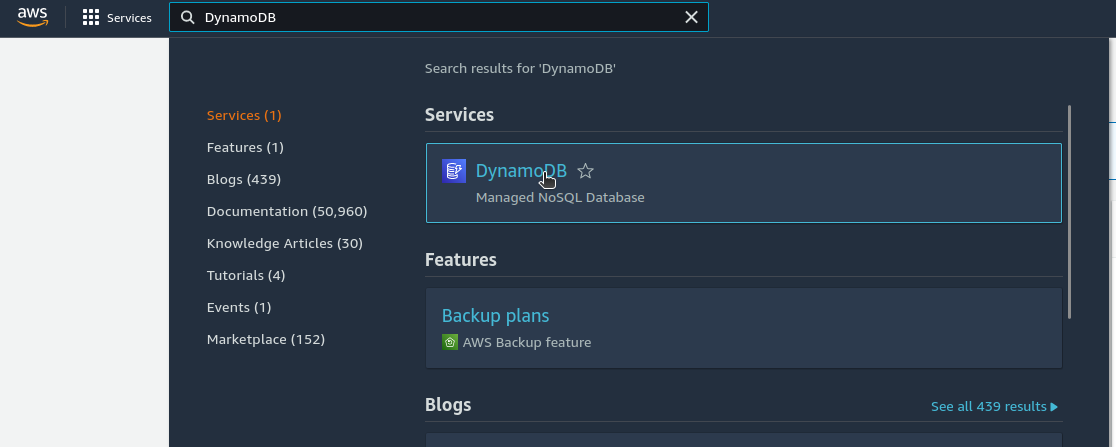
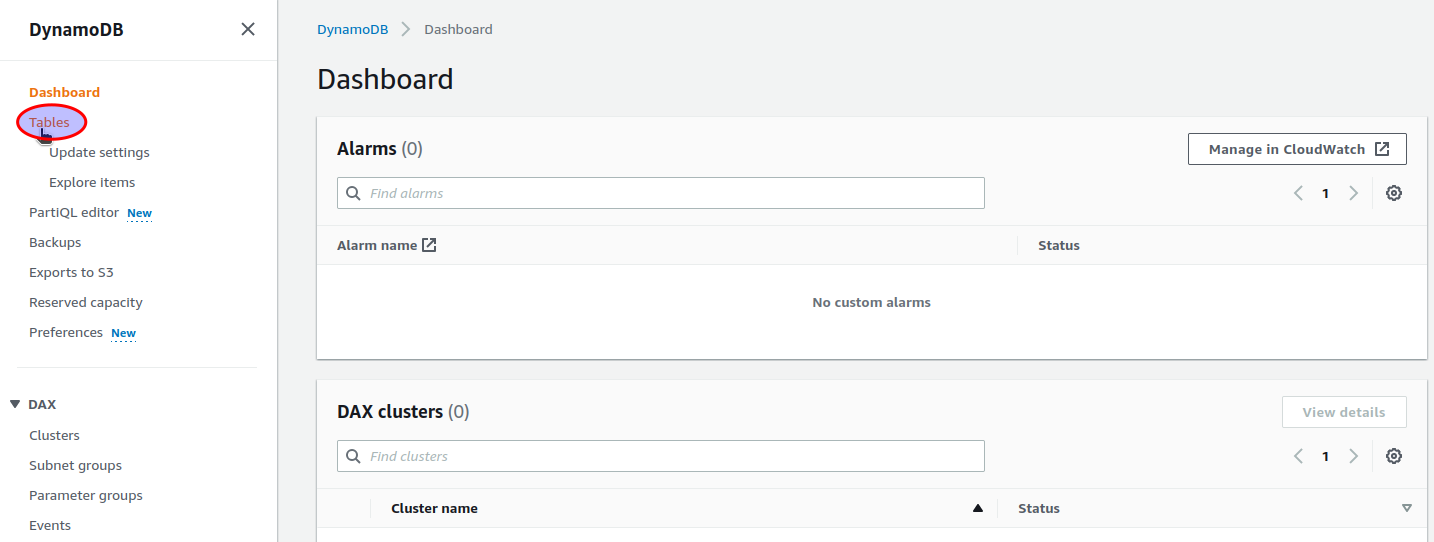
- Open the
Tablesmenu item:
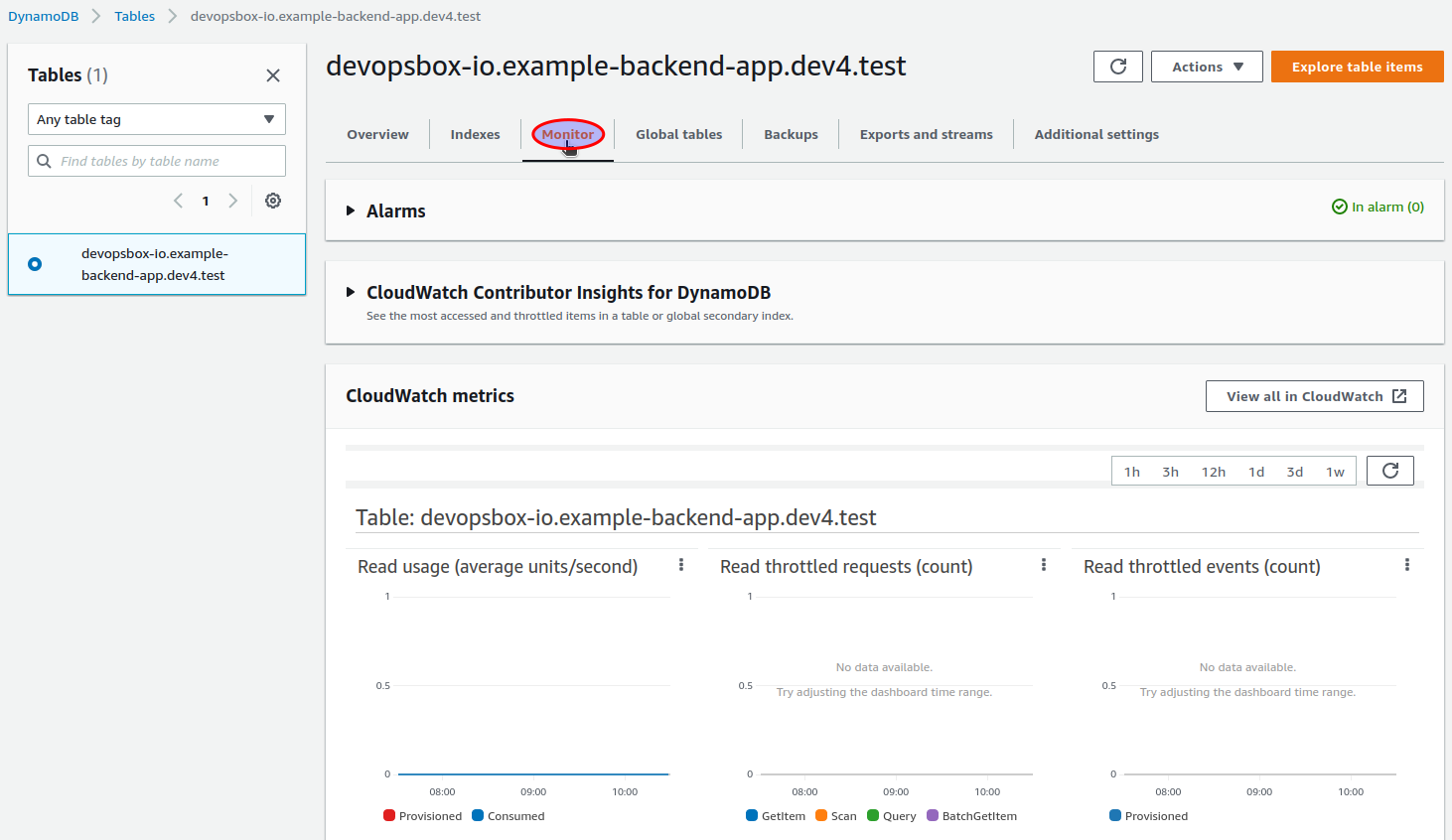
- Select your DynamoDB table. The naming convention is
APP_NAME.ENVIRONMENT.BACKING_SERVICE_KEY.TABLE_KEY, all the/characters are replaced with.(e.g.devopsbox-io.example-backend-app.dev4.test):

- Metrics are available in the
Monitortab:
CloudWatch
To access DynamoDB metrics in the CloudWatch console, first you have to obtain the DynamoDB table name (check "
Select your DynamoDB table" in DynamoDB monitoring view). An example of a dynamodb table
name is devopsbox-io.example-backend-app.dev4.test.
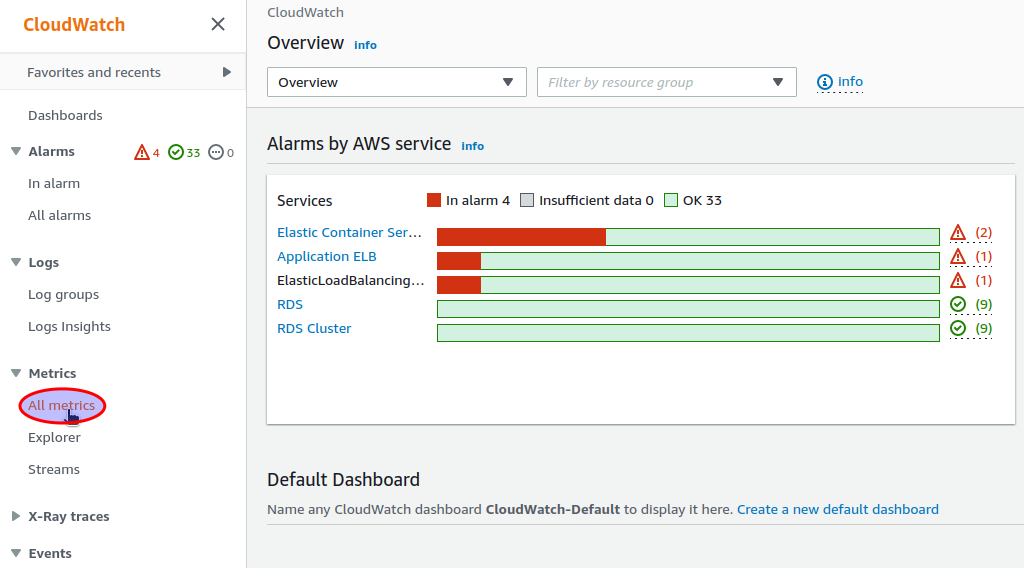
Monitoring metrics can be accessed in the AWS CloudWatch console. To show them you have to open the All metrics view:
- Find and select the CloudWatch console:
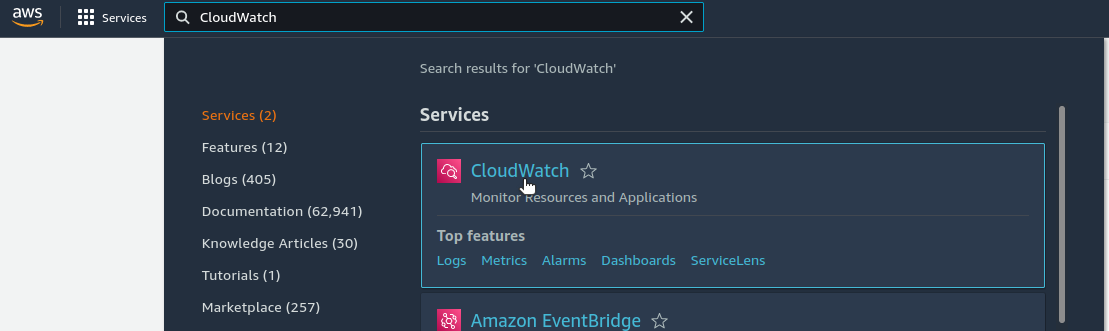
- Select the
All metricsview:
Then you can show all metrics related to your DynamoDB table by entering TableName="YOUR_DYNAMODB_TABLE_NAME" (
e.g. TableName="devopsbox-io.example-backend-app.dev4.test"):

Notifications
There are no CloudWatch alarms or notifications automatically created for the DynamoDB backing service.